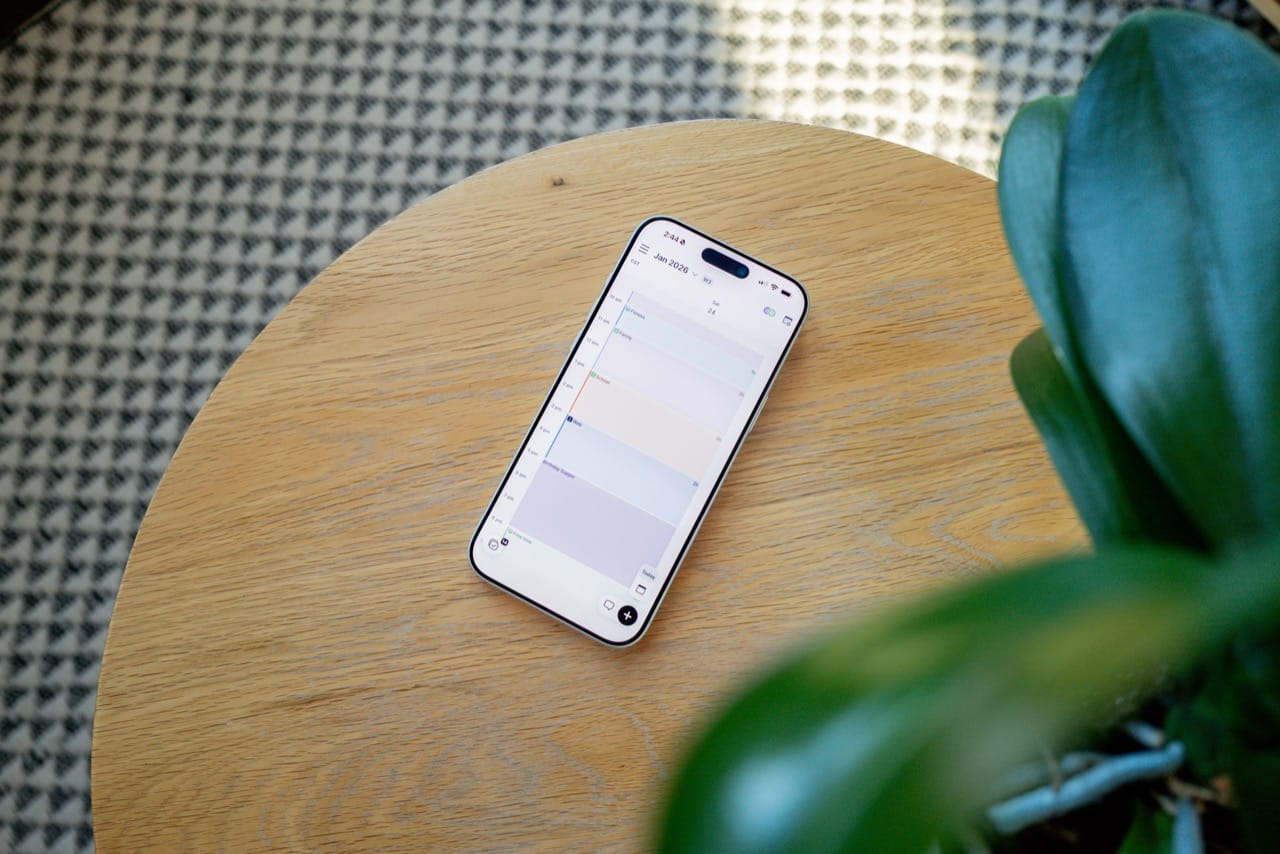
I’ve been a time-blocker/time-boxer for a long time. “Wake”, “Fitness”, “Prep” and “Admin and Email” have been the first four time blocks each weekday for the last two-plus years, and “Deep Work” usually ensures I can hammer out the most important task of the day before noon. If nothing else, time blocking has provided me peace of mind in knowing I have some time set aside to do a particular thing each day.
The method in which in that time blocking is completed has changed more than a few times, however. I used Sunsama a few years ago, but ultimately found the daily planning and shutdown rituals to be a bit too much each day. I tried using a combination of Reminders and Fantastical for a bit, but found things just didn’t quite jive as well as I liked. I also tried Notion and Notion Calendar for a bit, though this melded work and home life together a little too closely.
Akiflow has long been a time blocking option — it competed directly with Sunsama multiple years ago when I was deep into Sunsama. Akiflow’s biggest hiccup back then for me was its Google-first feature-set — I wasn’t in the Google ecosystem at the time, so Akiflow was a non-starter.
Fast-forward and I’m in the heart of the Google ecosystem, and I’m eager to try another new method for tracking tasks, deadlines, and projects, all inside a time blocking methodology that I feel I can’t live without. Akiflow has lasted longer than I originally expected it would in my personal tool stack, and it may well stick it out through tax season. But it isn’t without its faults.
Here are three quick anecdotes from my first three weeks with Akiflow.
Time Slots
Akiflow introduced a third type of input that makes a lot of sense for time blockers: time slots. When creating a new item, you have three choices: a task, an event, and a time slot:
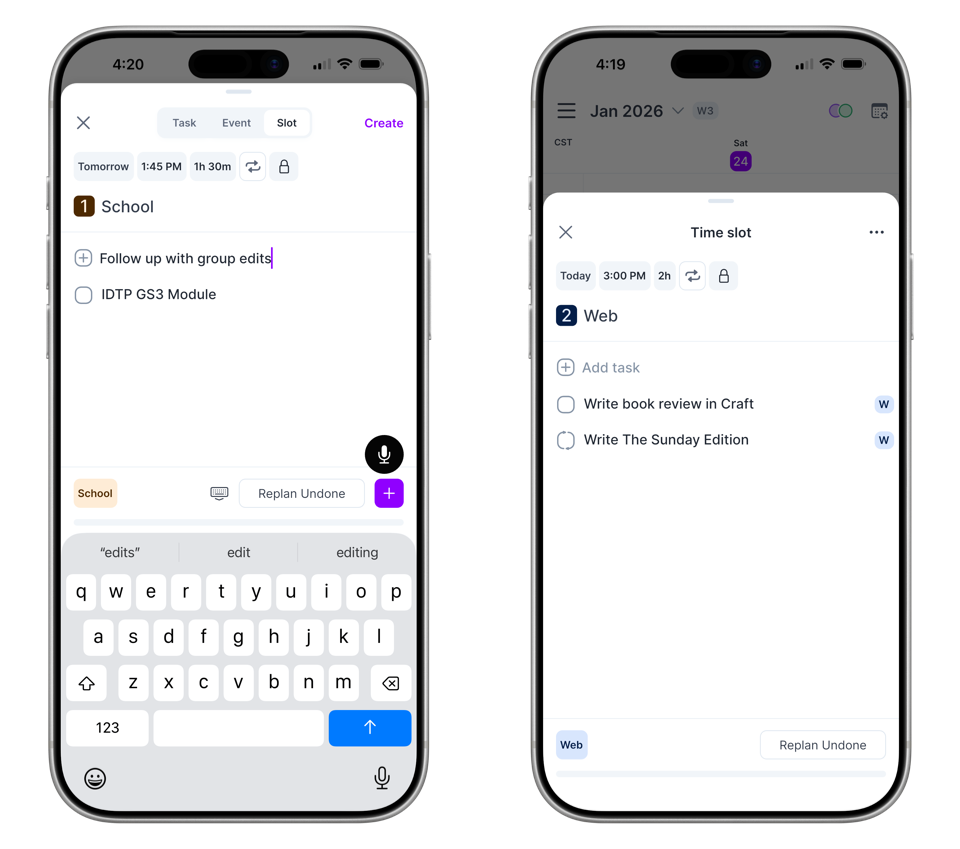
- Tasks are check-off items added to your calendar, which default to a 30-minute duration. They can be applied to a project (which I treat as “Areas”) and be locked to a particular calendar (say if you have a “Work” or “Personal” calendar).
- Events have whichever duration you choose and act quite like a regular event created in any calendar app. Projects/Areas can be applied to the event as well.
- Time Slots are effectively events inside which you can hold tasks. Time Slots can have a project applied and can be added to a specific calendar of your choosing. You can then drag and drop tasks from your task inbox inside the time slot.
I find myself using time slots all the time. In general, my day revolves through multiple two-hour blocks. Inside the “Admin and Email” time slot at the beginning of my day, for instance, I drag and drop any emails or administrative tasks from Notion that I want to get done before my day really starts. In the first “Deep Work” time slot, I drag and drop the big project work I need to get done — whether that be a Notion link directly to an office project inside Notion — or a task with a link to a Craft document where I can build out more tasks and research.
Time slots are a true epiphany moment for me. Akiflow has taught me I was actually using events as time slots rather than the true concept of an event.
If not for time slots, I’d like have put Akiflow aside at this point.
iOS Apps and Quick Capture
Akiflow’s iPhone app is quite excellent. It looks great, uses screen space quite nicely, and allows for quick daily organization throughout the day. I especially like Akiflow’s widgets on iPhone — they are big, bright, and easy to use.
There are some issues here, though.
First is the iPad app — Akiflow’s iPad app is feeble. The app can’t be used when the iPad is in landscape orientation, and the rest of the interface is quite simply a blown-up copy of the iPhone app. One would hope a proper iPad app would be at or near the top of the priority list.
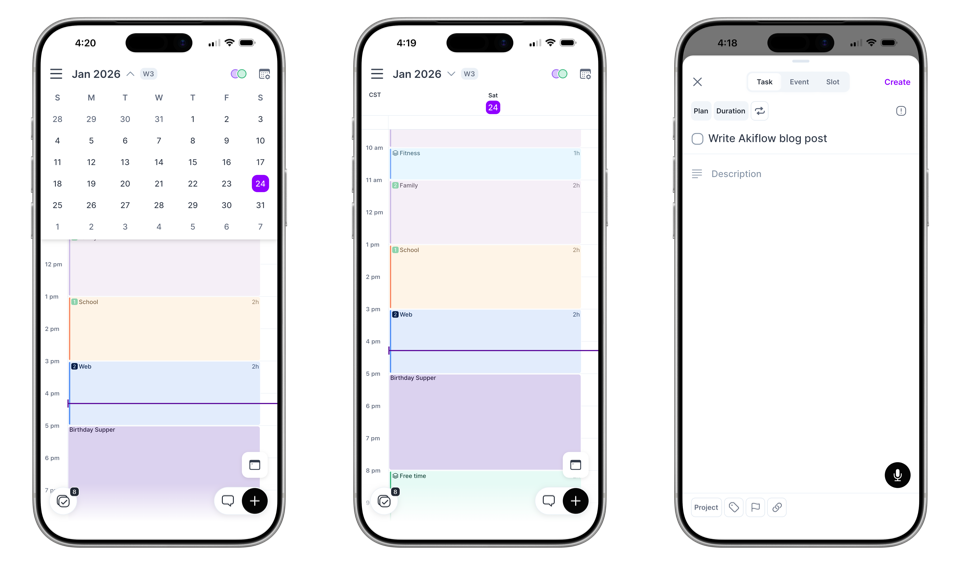
Second is Akiflow’s capturing methods on iPhone. I found the entire process kind of tedious. Tap on the button in the right corner, and you can throw together a naturally parsed sentence to create your task, event, or time slot. The hiccup is in the final “Add” button — instead of hitting the big checkmark on the keyboard to add the task and get back to the main view, you have to hit “Create” in the top-right corner to actually create the task/event/time slot.
This doesn’t seem so bad in writing, but it’s difficult on iPhone and when on the go. Oftentimes you only have one hand to type in a task or quick thought that hit you, and needing to navigate to the top to hit “Create” or to save an edited item simply gets in the way.
Overall, I quite like the way the Akiflow iPhone apps works and operates. The app is very well-designed and flows pretty smoothly on a small iPhone screen. The iPad would be better if it simply didn’t exist, however, and I hope this is in the cards for the near future.
Integration Hiccups
Lastly, integrations. Akiflow touts its integrations pretty heavily on its website and, when they work, they work pretty nicely. For emails, you can either label or star an email to send it instantly to Akiflow. Notion items can be added to Akiflow through properties. And there are a whole slew of other integrations for developers and designers.
All would be well in this department if the integrations worked. I’ve had to reset and reset my Notion integrations multiple times. When it is working, the integration takes forever to sync. I truly don’t need to wait 15 minutes or more for a Notion item to sync over to Akiflow. By that point, it’s faster to simply copy the item’s link in Notion and paste it into the dedicated field in the task/event/time slot in Akiflow.
Second, emails — I cannot for the life of me get my Gmail account to send emails over to Akiflow. I’ve tried the option to star an email and to label an email, but they simply won’t send over. When I emailed for help, I was provided an email that required me to turn the integrations on and off, to delete and reinstall the app, and to restart the app. Once again, this shouldn’t be too big of a deal. But finding 15 minutes during the week to troubleshoot an app that should work is not in my cards.
Summary
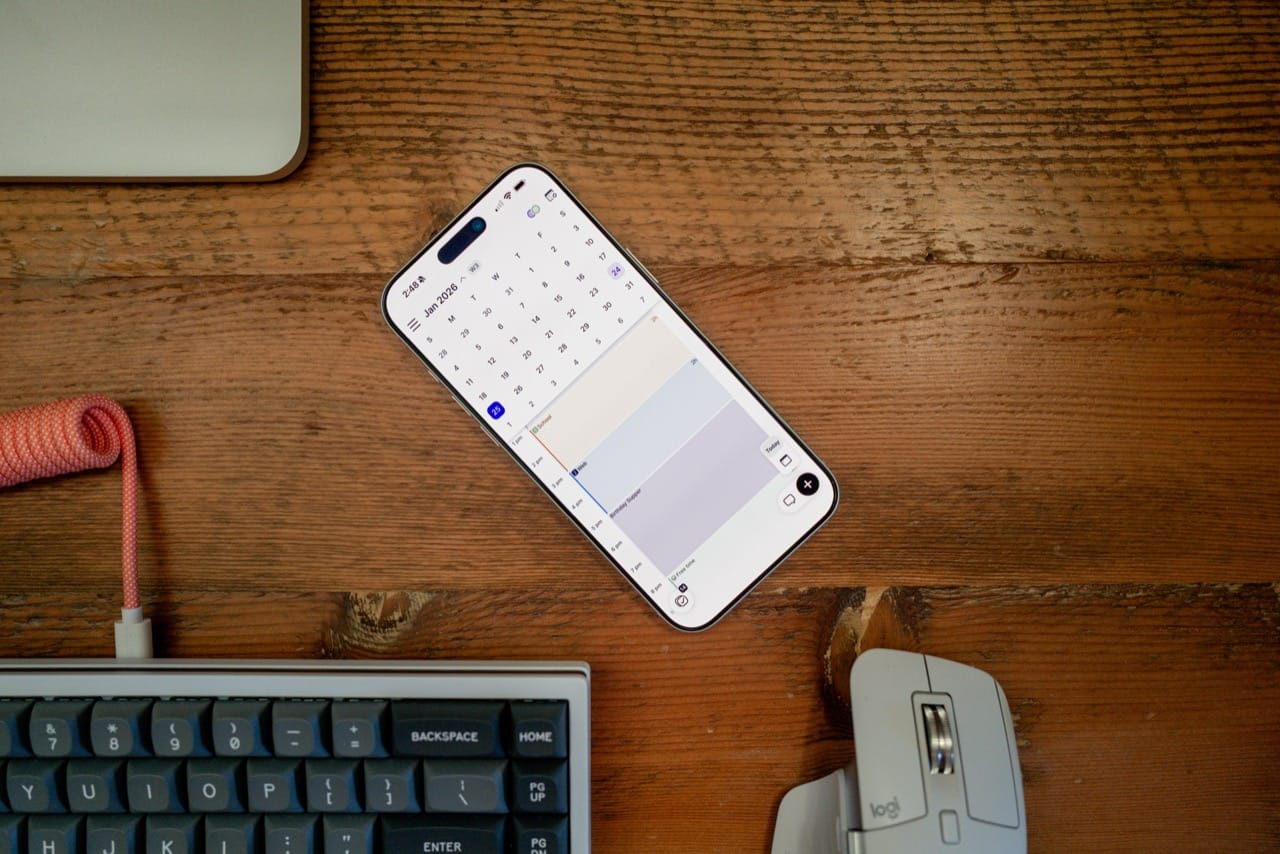
It’s a good thing time slots are such a fantastic option for managing a calendar and a productivity system. If not for time slots, I would have paid Akiflow the cash for the short subscription and called it a day. Instead, time slots are Akiflow’s absolute saving grace at this time.
Presently, my productivity system looks largely as follows:
- Plan my day and brain dump my tasks in handwritten notes in reMarkable.
- Create those time blocks and time slots in my actual calendar.
- Drag and drop tasks into time slots throughout the day.
- Rely on Akiflow to remind me of all tasks, events, and time slots as each day progresses.
Akiflow is a bit complex and costly (though I recommend traveling the off-boarding path if you are looking to save some money), but I can see it sticking it out thanks to its implementation of time slots. Time slots are one of those retrospectively obvious features that just work for me, and I hope to see more of this type of feature in other apps like Fantastical in the future.